
Changelog
Follow up on the latest improvements and updates.
RSS
new
Maestra App
A Fresh New Look for Maestra
We have redesigned Maestra to make the app cleaner, easier to navigate, and more consistent across desktop and mobile.
New Navigation and Dashboard
The sidebar and dashboard have a new layout that makes your library, workspace tools, credit balance, and account options easier to find. File rows now show clearer processing and review progress, with improved search, sorting, selection, and file actions on mobile.
Refreshed Editors (Transcription, Subtitle and Voiceover)
The Transcript, Subtitle, and Voiceover Editors now have a cleaner header, player, timeline, and functions panel. Controls remain easy to reach on smaller screens, while the updated layout gives your content more space.
Timeline Zoom and Timestamp Controls (Subtitle and Voiceover)
You can now zoom in and out of the timeline using the new controls or keyboard shortcuts. You can also drag a sentence timestamp left or right to make precise timing adjustments.
Accents and Emotions (Voiceover)
You can now guide how a voice sounds by adding directions in square brackets. Change the accent, mood, or pace within the same take using instructions such as
[british accent]
, [whisper]
, [very fast]
, or [excited]
. Each direction applies to the lines after it.A Better Way to Assign Voices (Voiceover)
The new Assign Voices window makes it easier to search and filter voices, audition them, save favorites, and compare options before assigning them to speakers. You can also see each speaker's casting status while you work.

We have released several updates to improve subtitle and voiceover workflows in the editor.
Default Settings
You can now set your default editor settings from
Account > Preferences
. Your preferred subtitle and export settings will be applied automatically to new projects. 
Match SRT with Media File
When uploading an SRT file together with your video or audio, Maestra will automatically match them if the filenames are the same.
To ensure automatic matching, the SRT and media file names must be identical.

Navigate Between Locked Sentences
Edited translated sentences become locked and display a lock icon. You can now jump between locked sentences using a keyboard shortcut. The shortcut depends on your operating system and can be found under
Help
in the editor.
Locked Sentence Percentage
You can now see the percentage of locked sentences directly from your dashboard to track your review progress.

new
Maestra Live
New design, two-way translation and more...
We’ve updated Maestra Live with a brand new design to make everything cleaner and easier to use. The interface is now simpler, and it’s much easier to jump into transcribing, translating, or dubbing. Along with the new design, we’ve also added new features and improvements to Maestra Live.

Two-Way Translation
In the
Translate
tab, you can now enable "Two-Way Translation". With this option, each person sees the conversation in their own language.
What you say will appear as original text on your side, and it will be translated on the other user’s side. The same works in reverse for the other person.
Mic Selection
You can now select your microphone input while transcription is running. Just click the mic icon to choose your input device.
You can also change your microphone anytime from the
Settings
menu.
Usage History
You can now view your credit usage history on Maestra Live. To access it, go to
Settings > Account > Usage History
.This page shows how your credits were spent, including the session type and usage details.

Resize Original & Translation Sections
You can now move the slider to adjust the size of the original and translated text sections. This makes it easier to focus on the side you need while translating in real time.

new
Maestra App
New features in the Maestra App
Audio Description
You can now generate automatic audio descriptions using Maestra. You can upload a file to the Voiceover Editor, and toggle “Audio description” on. This feature only works with video files.
Audio descriptions will be added to the parts with no speech to prevent overlapping. Therefore, we recommend using files that have enough gaps without speech.

Force Alignment
If you already have a transcript and want to sync it with your audio, you can now use the Force Alignment feature in the Subtitle or Voiceover Editor.
To enable it, upload your file and toggle on “Skip automatic transcription.” Then click Upload under “Align with Text (.txt)” and upload your transcript file. Your text will be automatically aligned with the spoken audio.

Record Audio & Screen Capture
We have added 2 new ways for you to upload files to Maestra. You can now record audio or capture your screen directly within the app.
These upload options are only available on the desktop version.

Editor Navigation Arrows
You can now use the navigation arrows next to the file name to switch to the next or previous file without leaving the editor. This makes it easier to review multiple files in a row and move between projects faster.

CPS Warning Indicator
On the Voiceover Editor, you can now see problematic sentences that may cause issues when synthesizing your voiceover. This helps you catch pacing problems like too many characters per second or sentences that are too short. That way, you can adjust timing or update the text before exporting.

new
Maestra App
Maestra 4.0 – A Fresh Look
New Theme
Maestra now has a refreshed theme with higher contrast colors, designed to boost readability and give the platform a cleaner, more modern feel.

AI Tools in the Transcript Editor
We’ve added AI tools to the Transcript Editor, bringing it in line with our Subtitle and Voiceover Editors. These tools are here to help speed up your workflow and make editing even smoother.

Under the Hood
We have made large changes on the backend to get us ready for many exciting features that we can't wait to share with you soon.
Import Subtitles
You can now upload subtitle files directly into the Subtitle Editor and Voiceover Editor.
Updated API Docs

We’ve improved our API documentation with clearer instructions and better examples. Check it out here: https://www.maestra.ai/docs.
Additionally, we’ve made various bug fixes to improve stability and performance.
new
Maestra App
Introducing DeepL and OpenAI Translation Options
We’re excited to announce some big updates to Maestra’s translation tools! When adding a new language or uploading a file, you’ll now see two new options in the
Language Translation Engine
dropdown: DeepL and OpenAI. These Pro features, alongside the existing Standard engine, provide more flexibility and significantly improve the quality of your translations.
OpenAI Translation
OpenAI makes translations more flexible by letting you adjust the tone and style to fit your needs. You can customize translations with custom prompts to match the audience or purpose.
Custom Translaton Prompts
Using OpenAI, you can guide your translations by adding prompts like:
“Translate in a professional tone”
or “This video is about a dentistry conference, so use scientific language.”
It’s an easy way to make translations more precise and relevant.
DeepL Translation
Maestra now includes DeepL as a translation engine, delivering accurate, context-aware results that improve the overall quality of your translations.
Translation Glossaries
You’ll find the new “Translation Glossary” tab under “Custom Dictionary” in the navbar. Translation glossaries let you define how specific words or phrases should be translated, keeping everything consistent across your projects. It’s especially handy for technical terms or branded language.

We’re excited to announce two major updates to Maestra!
1. Real-Time Transcription & Translation
We’ve introduced a Chrome extension and a website offering real-time transcription and translation. Now, you can experience seamless live captions and translations directly through your browser!
Website -
Link
The website can transcribe and translate the microphone audio from your computer to text. It integrates with OBJ, vMix, and webhooks.

Chrome Extension -
Link
The extension allows you to transcribe and translate the selected tab in your browser. The generated transcript will appear in your browser tab.

2. Lip-Sync for Voiceovers
In the media export menu of the Voiceover Editor, you’ll now find an option to export your voiceovers with lip-syncing. This feature matches the mouth movements in your video to the voiceovers you generate, making sure the visuals and audio stay in sync.

We’ve just released an exciting update to the Translation Alternatives feature in Maestra AI. Previously, our tool allowed you to generate shorter alternatives for translations using advanced language models. Now, we’re expanding this capability to offer even more flexibility and customization options.
With this latest update, you can generate longer alternatives or create custom translations tailored to specific needs. Whether you’re working with industry-specific jargon, adapting content for different cultures, or fine-tuning the length of your translations to fit specific formats, this feature allows you to make adjustments with ease.
Some of the use cases that you can try:
Industry-Specific Language:
Use technical terminology relevant to your field or simplify it for broader audiences.Cultural Adaptation:
Adapt translations to reflect regional dialects and cultural nuances.Emotional Tone Matching:
Tailor translations to evoke the desired emotional response, whether it’s urgency, empathy, or excitement.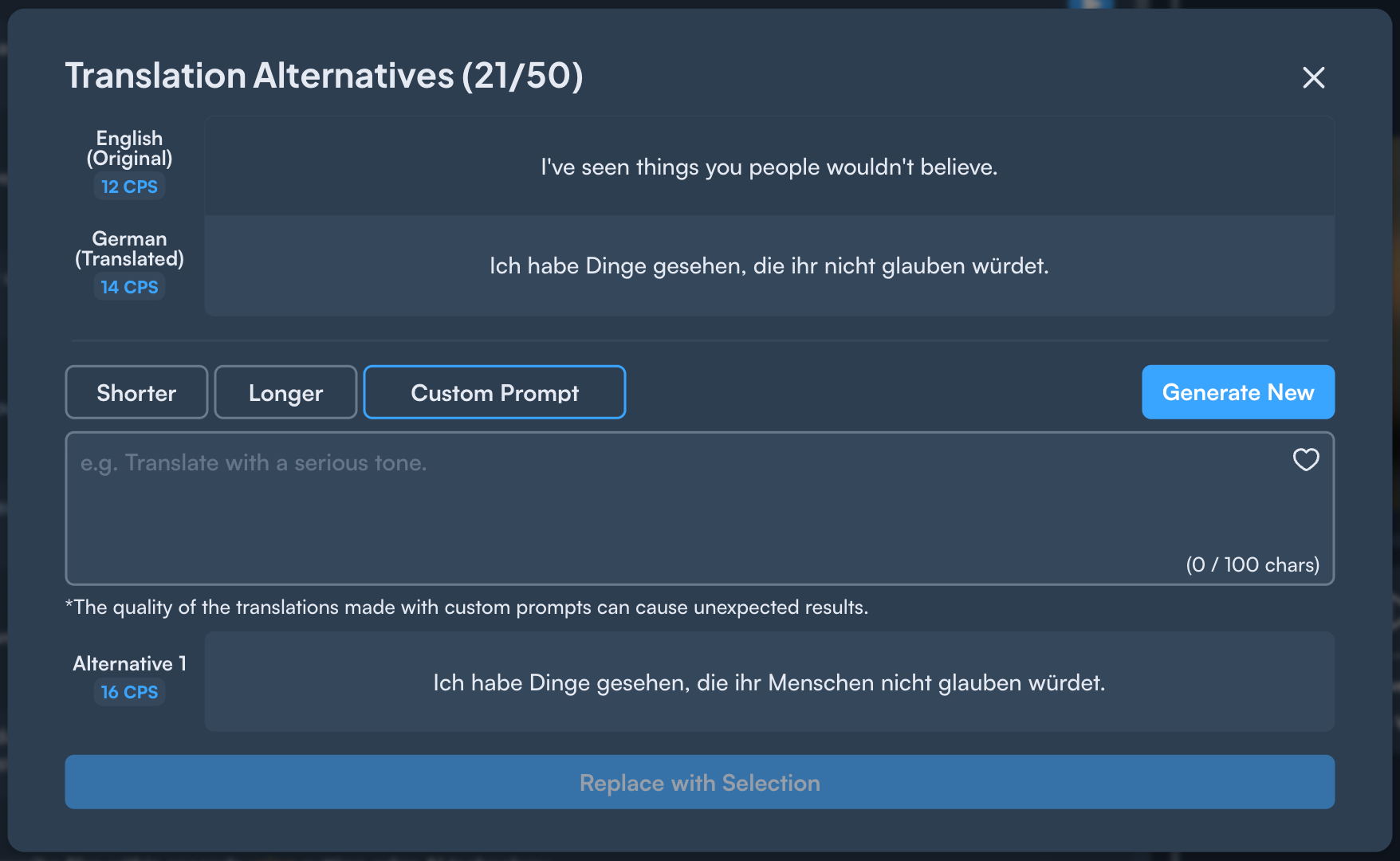
Above, you can see an example of the Translation Alternatives page. With the Custom Prompt option, you can type specific instructions to alter the automatic translation. You can experiment with different prompts, but here are some examples:
Translate this sentence in a funny way
Replace the word 'illustrious' with a more simple word
This translation is for a medical conference, so use technical jargon
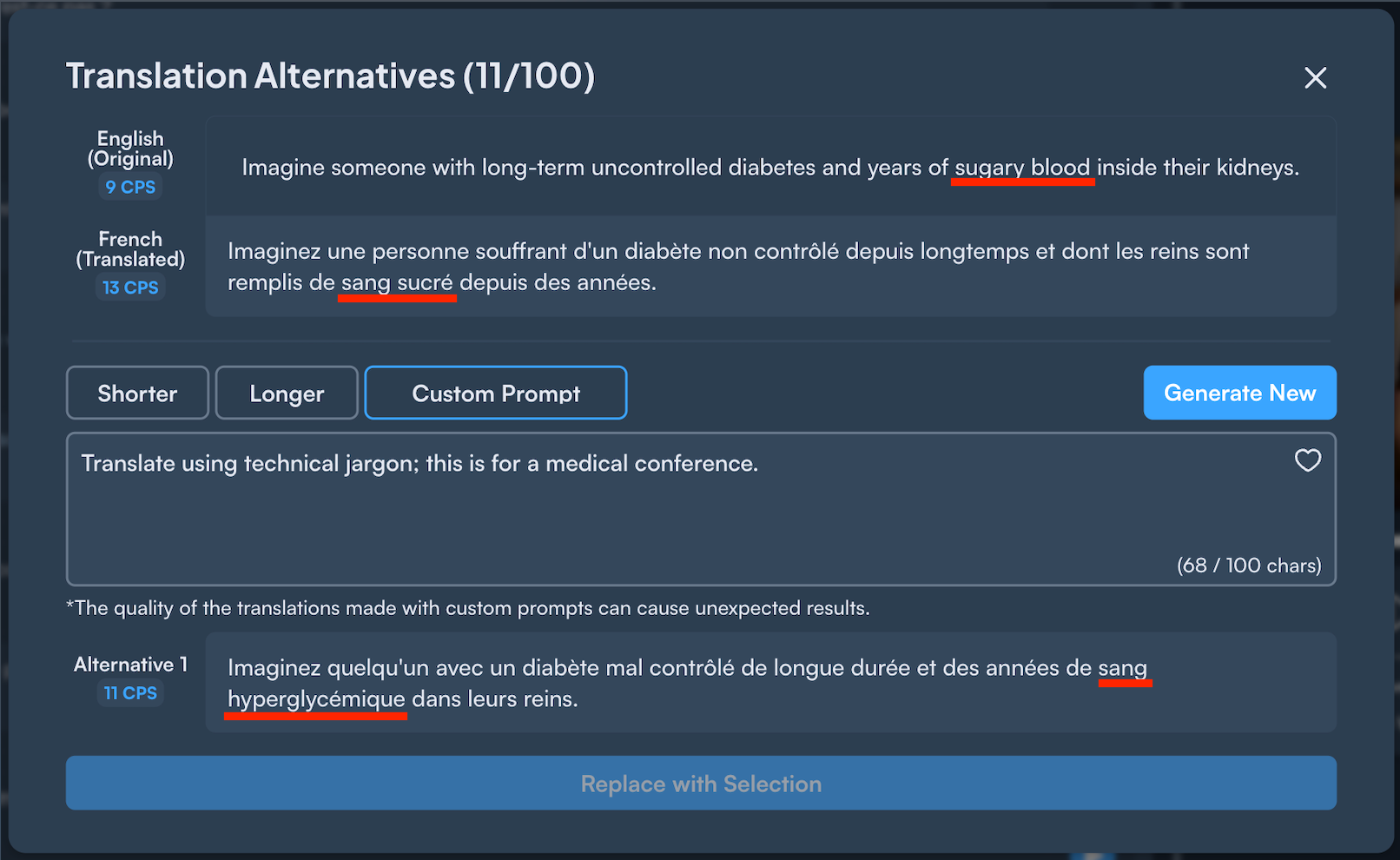
By providing this prompt, the translation changed "sugary blood" to "hyperglycemia," the more appropriate language for a medical conference.
You may find the Translation Alternatives model by selecting the "Generate Sentence Alternatives" button in the editor:

new
Maestra App
New AI Tools and Design Improvements
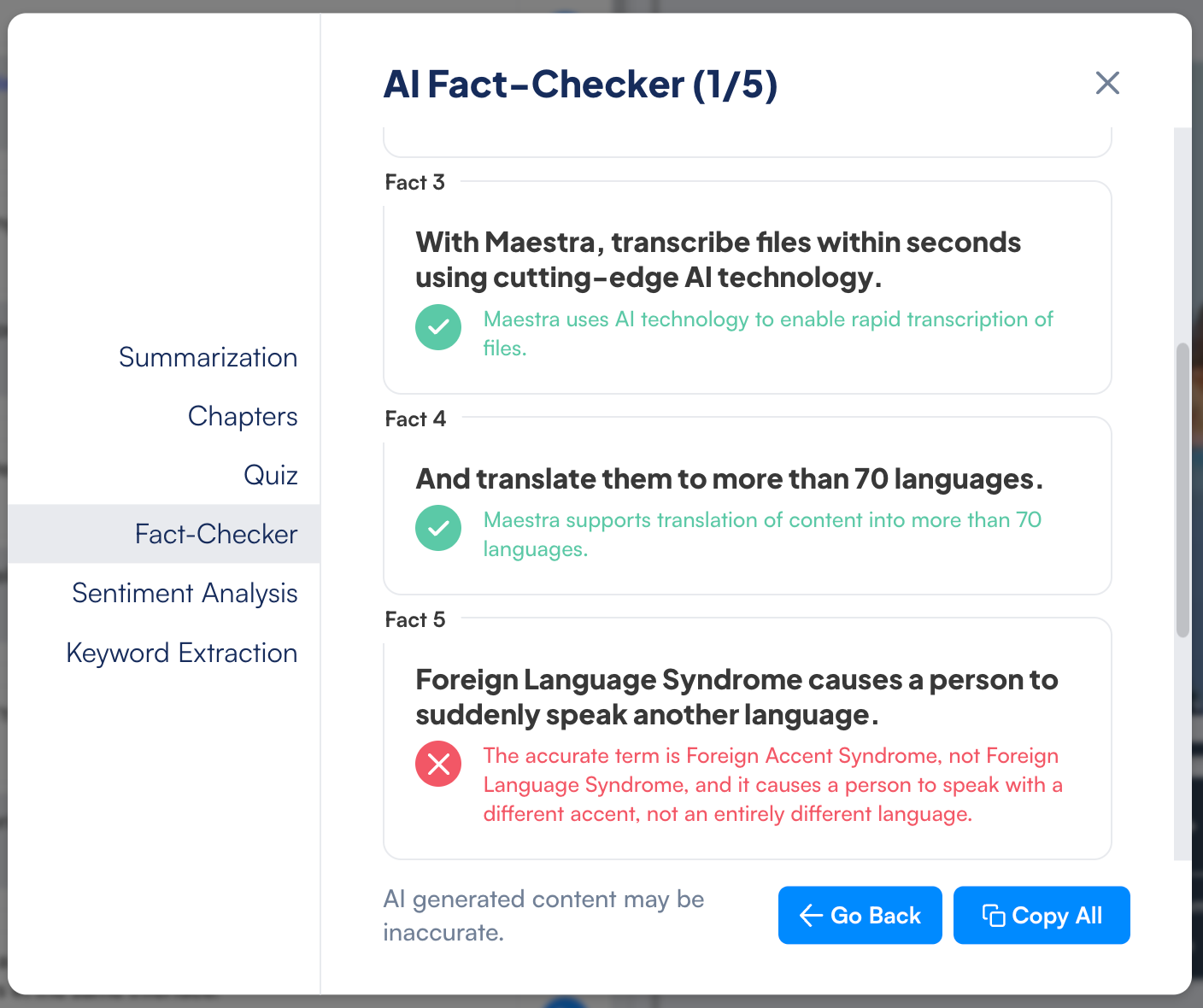
AI Tools for Subtitle and Voiceover Editors
- Summarize your content
- Generate chapters for your videos (e.g., YouTube videos)
- Create quizzes
- Fact-check your content
- Perform sentiment analysis
- Extract keywords (e.g., for SEO purposes)
Design Improvements
We have updated the tooltips to provide better information, changed the fonts, and made Maestra more responsive to enhance your experience.
Load More
→